How to Use Arbiscan: 8 Things I Actually Check When Something Goes Wrong
Why I trust the explorer more than my wallet
Every week someone sends me a screenshot: "The swap never arrived." And almost every week, the answer is on Arbiscan before the sentence is finished typing. Wallet UIs cache balances, hide token transfers they do not recognize, and occasionally show optimistic statuses that later disagree with the chain. The explorer has no UI to be wrong. It reads the raw receipts.
I wrote the Base-side version of this habit into the Basescan guide — same mental model, different chain. Once you can read one EVM explorer fluently, every other one is a reskin. This article is the Arbitrum One version: the eight views I open in order, what each one tells you, and the mistakes they prevent. Today's Arbiscan runs on the Etherscan V2 engine, so some tabs moved around compared with the old interface, but the data is identical.
1. The transaction receipt: status, age, and the one line that matters
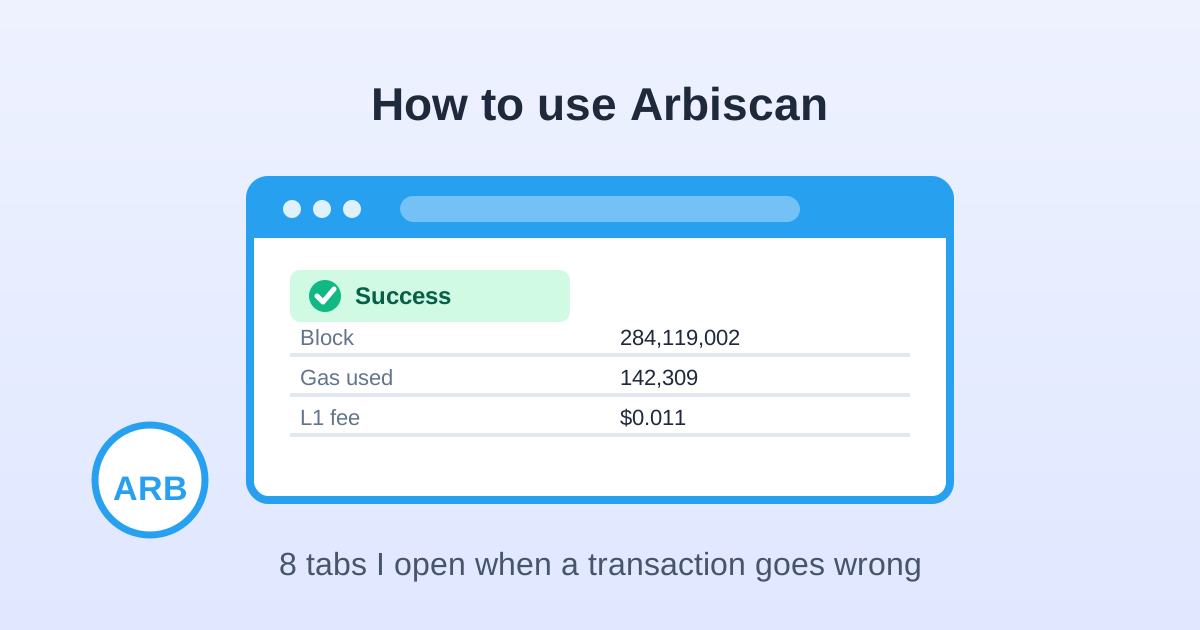
Search a hash and the first screen is the receipt. Top-left: the status. Success means state changes happened. Failed means the transaction reverted — approvals never took effect, tokens never moved, and the only money gone is gas. Block number and timestamp tell you when it settled (Arbitrum blocks come every few hundred milliseconds during busy periods, so "confirmations" tick up almost instantly).
The "To:" field is worth a second look. When you swap on Uniswap, you are not sending funds to Uniswap the company — you are calling a router contract. A verified contract shows a blue name tag and a checkmark; an unnamed 0x address with no label on the receiving end of your life savings deserves suspicion before the next transaction, not after.
2. Token transfers: what your wallet hides
Half the "my funds vanished" cases end here. The token transfer table lists every ERC-20 movement in the transaction, including dust tokens, protocol reward tokens, and assets your wallet has not imported. If you bridged USDC and it looks missing, this table shows whether you received native USDC or a wrapped representation — the same annoyance described in the CCTP guide.
Clicking a token name opens its contract page. Two checks take five seconds: does the token have an official name tag and a website/social profile linked, and is the holder list dominated by real routers or by freshly funded wallets? Scam tokens can clone a logo; they cannot clone the verified contract page of the real asset.
3. Internal transactions: where money really walks
Routers call pools, pools call other pools, and refunds bounce back as internal ETH transfers. None of these are top-level transactions, so they do not appear in a wallet's simple history — they live in the Internal Transactions tab.
I learned to read this tab during a bridge dispute years ago: the app showed "processing," my wallet showed nothing incoming, and the internal tab showed the funds had arrived at a proxy contract, waiting for a separate claim call I never made. The money was not lost. It was sitting one indirection deeper, exactly where the event log said it would be. Support unlocked it in two messages because I sent the hash instead of a vague "my deposit is missing."
4. Token approvals: the allowance view that prevents drains
From any address page, the token approvals section lists every spender your wallet has authorized and the allowance amount. This is the read-only twin of the cleanup routine in the approval revocation guide. I check it before using any protocol I cannot remember approving: if a contract I do not recognize holds an unlimited allowance, I know exactly which transaction created it by clicking through.
On Arbitrum the gas to revoke is $0.002-0.02, so there is no economic reason to leave old approvals alive "for later." The explorer view also exposes Permit2 allowances, which batch many protocols under one spender — revoking there wipes all routed approvals in a single cheap transaction.
5. The address page: label, age, and fund flow
Every address gets a profile page. For known entities — exchanges, routers, bridges — Arbiscan maintains name tags. For unknown addresses, the transaction history tells the story: when it was first funded, which exchange or mixer touched it, and whether it behaves like a person or a dispenser. This is how I vet a new protocol before signing anything.
My quick triage for a suspicious incoming token or a "support" address: first funding source (a known exchange withdrawal is mildly reassuring; a chain-hop from a privacy tool is not), transaction count per day (bots are relentless), and counterparty concentration (real users touch dozens of protocols; scam wallets touch their victims and a cash-out route). None of this proves safety, but it catches the lazy scams that do the majority of damage.
6. Verified contracts and the Read/Write tabs
A green checkmark on the Contract tab means the published source code matches the deployed bytecode — anyone can read what the contract actually does, not what its website claims. For the protocols I hold funds in, I skim the contract info for the deployer and the proxy pattern; upgradeable proxies mean the code can change, which ties directly into the upgrade-key risk in the L2 security guide.
The Read Contract tab lets you query public functions without spending a cent: your balance of a vault share, the pending reward of a staking position, whether an allowance is currently nonzero. Write Contract lets you call functions directly — useful for emergency withdrawals when a website goes down — but it is a power tool. A wrong call on a live vault is not undoable, so I use Write only with documentation from the protocol, never by guessing parameters.
7. Gas data and why your receipt looks weird
Arbitrum receipts split the fee into the L2 computation portion and the L1 data fee, displayed on separate lines. New users see a swap quoted at a tiny gwei price and a receipt charging ten times that, and assume something broke. Nothing did — the L1 portion pays for posting compressed data to Ethereum mainnet and moves with mainnet congestion. The Arbitrum fee explainer breaks down why this exists; the explorer line confirms it happened on your specific transaction.
The explorer's gas tracker section also shows recent network prices, though for timing transactions I use the live tracker on this site since it pairs Arbitrum with Base and the mainnet gwei that actually sets your L1 fee.
8. Advanced moves I actually use
Three small habits that pay off more than they should:
- Name tags on your own addresses. A free account lets you privately label your hot wallet, Ledger address, exchange deposit accounts, and farming wallets. On an explorer full of identical 0x strings, seeing "MY LEDGER" instead of raw hex has stopped me sending funds to the wrong address twice.
- Watch list with email alerts. I watch my cold wallet and any address holding a live position. An inbound or outbound transaction triggers a notification — if the cold wallet moves and I did not do it, that is the earliest possible alarm.
- Export the CSV at year end. The full transaction export, combined with token transfer data, is the backbone of the record-keeping system in the L2 taxes guide. Automated tax tools mislabel bridges and internal transfers; the explorer export is what settles disputes.
None of this makes you a smart-contract auditor. It makes you the kind of user who can answer "where is my money" in three minutes instead of three days of support tickets — and on a network where transactions cost pennies, the difference between a scary moment and a real loss is usually just knowing which tab to open.
Trade on Base / Arbitrum with Low Fees
Choose a trusted platform to swap, bridge, and trade on L2 networks.
Affiliate links — we may earn a commission at no extra cost to you.